Windows PowerShell Ping 命令输出添加时间和颜色

Contents
自定义 PowerShell 函数
pt,为 Ping 命令输出添加时间戳、5 级延迟色阶和抖动检测功能,让网络监控更直观。
目录
1. 功能说明
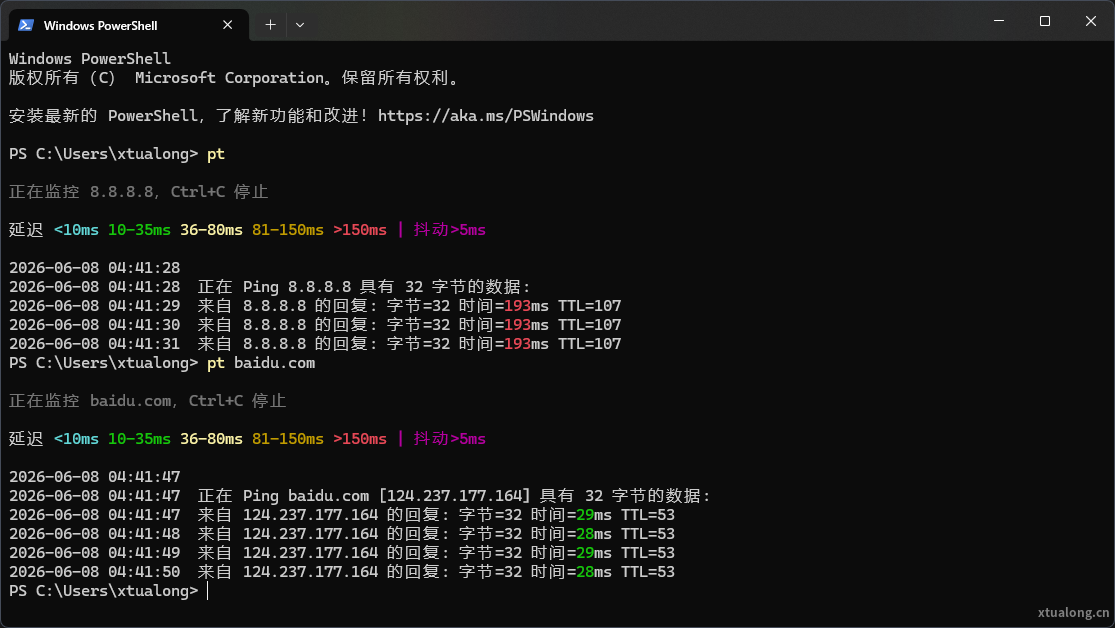
在 PowerShell 中使用 pt 命令 ping 目标地址,每行输出自动附带时间戳,并根据延迟和抖动情况以不同颜色显示。
1.1 效果
- 5 级延迟色阶:根据
=xxms中的数值着色 - 抖动检测:连续两次延迟差值 > 5ms,数字变品红
- 超时/丢包:整行红色高亮
- 时间戳:每行输出附带
yyyy-MM-dd HH:mm:ss格式时间
1.2 颜色说明
| 延迟范围 | 颜色 | 示例 |
|---|---|---|
| < 10ms | 青色 | ■ Cyan |
| 10 ~ 35ms | 绿色 | ■ Green |
| 36 ~ 80ms | 黄色 | ■ Yellow |
| 81 ~ 150ms | 橘色 | ■ DarkYellow |
| > 150ms | 红色 | ■ Red |
| 抖动 > 5ms | 品红 | ■ Magenta |
| 超时/丢包 | 红色 | ■ Red |
| 信息行 | 默认色 | ■ Gray |
2. 快速使用
一行命令自动完成安装。
推荐使用 Windows 自带的 PowerShell 5.1(路径:C:\Windows\System32\WindowsPowerShell\v1.0\powershell.exe):
irm https://www.xtualong.cn/scripts/install-pt5.ps1 | iexPowerShell 7+ 用户:
irm https://www.xtualong.cn/scripts/install-pt7.ps1 | iex安装完成后重启 PowerShell,直接输入 pt 即可使用。
离线环境:先下载脚本到本地,再执行本地文件:
# 下载脚本(二选一)
Invoke-WebRequest -Uri https://www.xtualong.cn/scripts/install-pt7.ps1 -OutFile "$env:TEMP\install-pt7.ps1"
# Invoke-WebRequest -Uri https://www.xtualong.cn/scripts/install-pt5.ps1 -OutFile "$env:TEMP\install-pt5.ps1"

# 执行本地脚本
Get-Content "$env:TEMP\install-pt7.ps1" -Raw | Invoke-Expression
3. 手动安装
3.1 设置执行策略
以管理员身份运行 PowerShell,允许加载本地脚本:
Set-ExecutionPolicy RemoteSigned -Scope CurrentUser3.2 创建 Profile 文件
New-Item -Path $PROFILE -Type File -Force3.3 写入脚本
notepad $PROFILE将下方完整脚本粘贴进去。
3.4 保存并设置编码(关键)
Notepad 默认保存为 UTF-8,但 PowerShell 5.1 按 GBK 读取,会导致中文乱码。
操作:记事本 → 文件 → 另存为 → 底部编码下拉框选择 ANSI → 保存覆盖。
Windows Terminal + PowerShell 7+ 默认 UTF-8,不需要此步骤。
3.5 重启 PowerShell 测试
pt4. 完整脚本
[Console]::OutputEncoding = [System.Text.Encoding]::GetEncoding(936)
$OutputEncoding = [System.Text.Encoding]::GetEncoding(936)

function pt {
    param(
        [string]$Target = "8.8.8.8",
        [int]$Count = 0
    )
    $pingArgs = @($Target)
    if ($Count -gt 0) { $pingArgs += "-n"; $pingArgs += $Count }
    else               { $pingArgs += "-t" }

    $lastMs = -1

    Write-Host ""
    Write-Host "正在监控 $Target,Ctrl+C 停止" -ForegroundColor DarkGray
    Write-Host ""
    Write-Host -NoNewline "延迟 "
    Write-Host -NoNewline "<10ms " -ForegroundColor Cyan
    Write-Host -NoNewline "10-35ms " -ForegroundColor Green
    Write-Host -NoNewline "36-80ms " -ForegroundColor Yellow
    Write-Host -NoNewline "81-150ms " -ForegroundColor DarkYellow
    Write-Host -NoNewline ">150ms " -ForegroundColor Red
    Write-Host "| 抖动>5ms" -ForegroundColor Magenta
    Write-Host ""

    & ping @pingArgs | ForEach-Object {
        if ($_ -match '^\s*$') { return }
        $ts = Get-Date -Format "yyyy-MM-dd HH:mm:ss"
        $line = $_

        # TTL 回复行 - 延迟着色
        if ($line -match "TTL=") {
            $parts = $line -split "(\d+)ms"
            if ($parts.Count -ge 3) {
                $ms = [int]$parts[1]
                Write-Host "$ts  $($parts[0])" -NoNewline

                # 抖动检测:与上一次延迟差值 >5ms
                if ($lastMs -ge 0 -and [Math]::Abs($ms - $lastMs) -gt 5) {
                    $c = "Magenta"
                } else {
                    if     ($ms -lt 10)  { $c = "Cyan" }
                    elseif($ms -lt 35)  { $c = "Green" }
                    elseif($ms -lt 80)  { $c = "Yellow" }
                    elseif($ms -lt 150) { $c = "DarkYellow" }
                    else                { $c = "Red" }
                }

                Write-Host "$ms" -ForegroundColor $c -NoNewline
                Write-Host "ms$($parts[2])"
                $lastMs = $ms
            } else {
                Write-Host "$ts  $line"
            }
        }
        # 超时/丢包/无法访问 - 红色,重置基准
        elseif ($line -match "timed out|超时|无法访问") {
            Write-Host "$ts  $line" -ForegroundColor Red
            $lastMs = -1
        }
        # DNS、统计等信息行
        else {
            Write-Host "$ts  $line"
        }
    }
}
5. 使用方式
pt                    # 持续 ping 8.8.8.8(默认)
pt baidu.com          # ping 指定域名
pt 192.168.1.1        # ping 指定 IP
pt 8.8.8.8 -Count 20  # ping 20 次后停止
停止监控按 Ctrl+C。
6. 卸载 / 恢复默认
6.1 清除脚本
notepad $PROFILE删除全部内容后保存。
6.2 恢复默认提示符
function prompt { "PS $($executionContext.SessionState.Path.CurrentLocation)> " }写入 Profile 文件保存即可。
6.3 移除编码设置(可选)
如果 Profile 为空但仍有 chcp 936 残留提示,确认 Profile 文件内容已清空并重启。
7. 常见问题
7.1 中文乱码
原因:文件编码不匹配。Notepad 默认 UTF-8 保存,PowerShell 5.1 按系统编码(GBK)读取。
解决:另存为时编码选择 ANSI。
7.2 抖动误报
原因:超时后没有重置基准,导致下一次回复与 -1 的差值被误判为抖动。
解决:本脚本在超时/丢包时将 $lastMs 重置为 -1,跳过抖动检测。
0 次查看